---
title: How Artists Can Pay Super to Band Members with HG Super Pay
description: Set up your artist and act profiles, invite musicians, register for HG Super Pay, map Players and pay their super through Hot Giggity’s Super Ledger.
---
[Skip to content](https://help.hotgiggity.com/hg-support/how-artists-can-pay-super-to-band-members-with-hg-super-pay#main-content)
English - Australia
Show submenu for translations
[](https://20228549.hs-sites.com/hg-support?hsLang=en-au)
Open main navigation
Close main navigation
- English - Australia
Show submenu for translations
- [Submit a support request](https://help.hotgiggity.com/my-tickets/new)
[Submit a support request](https://help.hotgiggity.com/my-tickets/new?hsLang=en-au)
How can we help you?
- There are no suggestions because the search field is empty.
1. [Hot Giggity Support](https://help.hotgiggity.com/hg-support?hsLang=en-au)
2. [Artists & Entertainers](https://help.hotgiggity.com/hg-support/artists-entertainers?hsLang=en-au)
3. [Superannuation (Australia Only)](https://help.hotgiggity.com/hg-support/artists-entertainers?hsLang=en-au#superannuation-australia-only)
# How Artists Can Pay Super to Band Members with HG Super Pay
### Performer eligibility — ATO guidance reviewed 13 October 2026
> An ABN, invoice, hobbyist status or retirement does not automatically remove super obligations for individual performers. Check legal liability for the performance payment and any applicable exception. Hot Giggity’s entity setting and invoicing model must reflect the actual engagement; they do not decide legal liability.
>
> [**Read the eligibility and responsibility guide**](https://20228549.hs-sites.com/hg-support/superannuation-compliance-how-hot-giggity-supports-it?hsLang=en-au) or the [**ATO performer guidance**](https://www.ato.gov.au/businesses-and-organisations/super-for-employers/work-out-if-you-have-to-pay-super/super-for-sportspeople-performers-film-makers-and-related-activities) (updated 16 September 2026).
### Part 1 – Getting started: from your profile to your first super payment
This workflow takes band leaders and Act Owners from setting up Hot Giggity to paying their Players’ super. Follow the steps in order, or start at the step that matches your current setup.
**The Super Ledger records what you owe. Super is only submitted when you complete the payment process.** Before paying, you need an active HG Super Pay add-on, verified employer registration and mapped Players with complete super details.
### 1. Complete your personal profile
Sign in as an Artist / Entertainer and complete your personal profile, including Financials. This profile represents you as an individual. Continue through to Privacy and click **Save / Next** to finish.
Read the guide: [**Setting up your Personal Profile**](https://help.hotgiggity.com/hg-support/getting-set-up-hot-giggity-gig-booking-system?hsLang=en-au).
### 2. Create your act profile
Create an Act Profile for the band or act you manage, including its name, line-up and relevant details. The act is what gets booked by a Venue, Agent or private client. Find your completed act under **Manage → My Acts**.
Read the guide: [**Setting up your Act Profile**](https://help.hotgiggity.com/hg-support/getting-set-up-hot-giggity-gig-booking-system?hsLang=en-au).
### 3. Invite your musicians
Add or invite the musicians who perform in your act. Each Player needs their own personal Artist / Entertainer profile. Ask them to accept your act invitation. See [**The Act Profile and Managing Your Players**](https://help.hotgiggity.com/hg-support/the-act-profile-and-managing-your-players?hsLang=en-au). Joining your act and accepting an invitation to a particular gig are separate steps.
### 4. Ask Players to complete their super details
Each Player enters their own details under **Manage → My Personal Profile → Financials → Superannuation**: legal name, date of birth, address, TFN, super fund and member number. The fund USI and ABN are populated when they select their fund. Required details must be complete before you can register them in HG Super Pay. See the **Player Prerequisite** section in Part 2 for the full checklist.
### 5. Activate HG Super Pay and register as an employer
In your own **Manage → My Personal Profile → Financials**, choose **Pay with HG Super Pay**. Open **Manage → HG Super Pay**, activate the add-on and complete the **Employer** registration, including your bank account and direct debit authority. Follow **Steps 1–4 in Part 2** for the full instructions and costs.
Verification can take up to 48 hours. Wait for the confirmation email and an **Active** employer status on Overview before registering Players and submitting payments.
### 6. Create a booking and invite Players with their fees
Use **Create Booking** to enter the gig for your act, including private or corporate gigs arranged outside Hot Giggity. Invite the Players performing at that gig and specify each Player’s fee. Ask them to accept their booking invitations.
Follow [**Gig Booking Platform for Artists & Entertainers**](https://help.hotgiggity.com/hg-support/gig-booking-platform-for-artists-entertainers?hsLang=en-au), or browse [**Creating & Managing Your Own Bookings**](https://help.hotgiggity.com/hg-support/artists-entertainers?hsLang=en-au#creating-managing-your-own-bookings).
### 7. Check the Super Ledger as Players accept
As Players accept the booking, applicable super obligations populate in **Super Ledgers → Super I Owe**. Check the Players, booking and super amounts. A ledger entry records an amount owing; it is not confirmation of payment.
Players appear for mapping in HG Super Pay after they have been booked and have super owing. If a Player is missing, check their booking acceptance and your ledger date and contact filters.
### 8. Map your Players in HG Super Pay
Once your employer registration is verified, open **Manage → HG Super Pay → Employees**. For each unmapped Player, select **SYNC EMPLOYEE** and review the details from their profile. Their status changes to **Mapped** and super fund verification (MVR) starts automatically. Wait until Fund verification shows **Verified** before paying their super (usually 24-48 hours). If details are missing, ask the Player to complete their Financial profile first. Follow **Step 5 in Part 2** for mapping and updating instructions.
### 9. Return to the Super Ledger to pay
Return to **Super Ledgers → Super I Owe**. Check the readiness indicators, select the items to pay and choose **Pay Super**. Review the amounts, click **Validate** and, once you see **Ledgers Valid**, select **Pay Now**. Follow **Steps 8–9 in Part 2** to submit and track payments through to settlement.
Creating a booking, accepting an invitation or mapping a Player does not itself submit a super payment.
### Part 2 – Detailed HG Super Pay instructions
### Why HG Super Pay for Artists?``
With Payday Super now in effect, artists and act owners who engage sole-trader players need a compliant way to pay superannuation on every gig, including private and corporate bookings where you are the employer.
If you run a multi-player act and engage eligible individuals in your own right, assess your SG obligations to those Players. For weddings and parties, a private client’s direct engagement may qualify for the private/domestic exception if the ATO criteria are met. That exception does not automatically apply to your separate business engagement of Players.
HG Super Pay lets you handle this directly from inside Hot Giggity. You create the booking, invoice your client, receive invoices from your players, and pay their super from your own nominated bank account via SuperChoice, a licensed clearing house (AFSL 314357).
In short:
- You invoice your clients directly and collect payment as you always have
- You stay in control of your bookings, invoicing and cash flow
- You arrange required super where you are legally liable for the eligible performer’s payment. The booking arrangement determines liability.
- Super payments are made from your own bank account, not through a third party's payment pipeline
- Full visibility and tracking of every payment, from submission to settlement
### HG Super Pay gives you compliance without compromise.
### About This Guide
HG Super Pay lets artists and act owners pay superannuation directly to their sole-trader players from inside Hot Giggity, no separate accounting software required. This guide walks you through the whole journey: choosing it as your super payment method, activating the add-on, registering as an employer, mapping your players, and paying and tracking super.
There are two starting points covered below:
- **New to HG Super Pay** – you have never paid super through Hot Giggity before.
- **Switching from Xero** – you currently pay super via Xero and want to move to HG Super Pay.
Pick the path that matches you, then continue with the shared steps below.
### Before you start:
| Topic | Details |
| --- | --- |
| **Availability** | Australian customers only |
| **Pricing** | $1.50 ex GST per player payment per pay run, billed on the 5th of the following month. For example, if a player completes 4 gigs in a fortnightly pay period, that's one player payment = $1.50 ex GST. |
| **Who is it for?** | Artists and act owners paying super on behalf of sole-trader players they engage |
### What Is HG Super Pay?
When you engage a sole-trader player for a gig, you may be responsible for paying their superannuation. HG Super Pay shows you what you owe across your bookings, lets you pay it in a few clicks, and tracks each payment through to settlement, all without leaving Hot Giggity.
You stay in control: you choose who to pay and when, you authorise the direct debit once during setup, and Hot Giggity debits your nominated account only for the super you submit.
### Setup Steps
### Step 1 – Choose Your Super Payment Method
Everything starts with one decision: how do you want to pay super?
Go to: **Manage → My Personal Profile → Financials**, and find the **Super Payments** section. You'll see two options:
- **Pay with XERO** – super is processed through your connected Xero account (requires a Pro plan and an active Xero integration).
- **Pay with HG Super Pay** – super is paid directly through Hot Giggity.
Select **Pay with HG Super Pay**. Your choice is saved automatically, and you'll see a prompt to activate the add-on and complete your employer setup in **Manage → HG Super Pay**.
Click Save Next
> **New to HG Super Pay:** If you've never set up super in Hot Giggity, simply choose **Pay with HG Super Pay** here, finish setting up your profile, and then continue to Step 2.
> **Switching from Xero:** Change the Super Payments option from **Pay with XERO** to **Pay with HG Super Pay**.
### Step 2 – Open HG Super Pay
In the left sidebar, under **Manage**, click **HG Super Pay**.
The HG Super Pay hub has four tabs:
| Tab | What it's for |
| --- | --- |
| **Overview** | Your status at a glance and quick actions |
| **Employer** | Register yourself as an employer (one-time setup) |
| **Employees** | Map your sole-trader players to HG Super Pay |
| **Contribution History** | A searchable log of past super contributions per player (appears once the add-on is active) |
### Step 3 – Activate the Add-On
On the **Overview** tab, the **Add-on** card shows as **Inactive**. It also shows the price: $1.50 ex GST per player payment per pay run.
Click **Activate**. You will be taken to our integrated checkout to add card details and activate the HG Super Pay add-on.
Once active, the Overview tab shows three status cards:
| Card | What it shows |
| --- | --- |
| **Add-on** | Active (green) once the add-on is enabled |
| **Employer** | Your current employer registration state (see Step 4) |
| **This month** | Number of submissions made and estimated cost so far, billed on the 5th of the following month |
Below the cards you'll find Quick actions – shortcuts to Super Ledger, Payments, and Manage employees.
### Step 4 – Register as an Employer
Open the **Employer** tab. Until you finish, the form shows a grey "Not Registered" chip.
Fill in each section:
| Section | Fields required |
| --- | --- |
| **Employer Details** | Trading → Company Name; ABN |
| **Contact Person** | First Name, Last Name, Email; Mobile Phone (Area Code and Telephone are optional) |
| **Registered Address** | Street, Suburb, State, Postcode |
| **Contribution Bank Account** | BSB, Account Number, Account Name – this is the account HG Super Pay will debit for super contributions |
| **Refund Bank Account** | Tick "Same as contribution account" to reuse the details above, or untick and enter a separate BSB, Account Number and Account Name |
| **Direct Debit Authority** | Tick the checkbox to authorise direct debit. Click Terms & Conditions to read the agreement first. |
| **Signatory** | Signatory Name and Signatory Position |
| **Digital Signature** | Click Draw to sign with mouse or touch screen, or Upload Image to add a saved signature. Use Clear Signature to start again. |
When every required field is complete and you've agreed to the direct debit, the **Register as Employer** button becomes active. Click it.
Your employer application is submitted and registration can take up to 48 hours to complete. You will receive an email notification when it is processed. The chip in the Employer tab form will show "Registered" once the form has been submitted.
**Employer status on the Overview tab:** The Employer card tracks your registration through three stages.
| Status shown on the Overview card | What it means |
| --- | --- |
| **Not registered (grey)** | You haven't submitted the Employer Setup form yet |
| **Submitted – Awaiting Verification (blue)** | Your form has been submitted and is being processed – can take up to 48 hours |
| **Active (green)** | Your employer registration is fully verified and contributions are enabled |
**Note:** The Employer tab form itself shows a simpler "Registered" → "Not Registered" chip that reflects whether the form has been submitted, not whether verification is complete.
### Step 5 – Map Your Players (Employees)
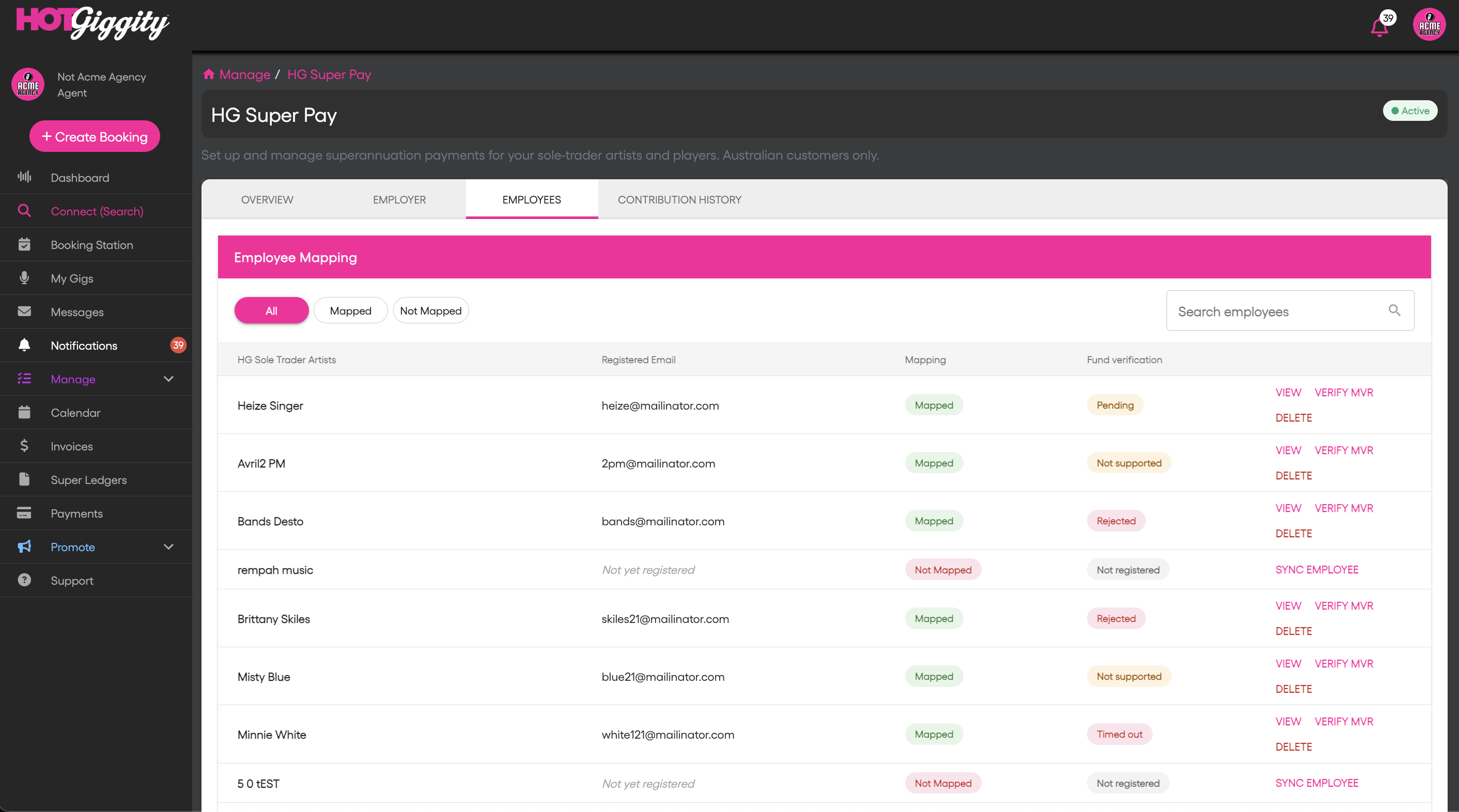
Once you have received the email that your employer registration is complete, open the **Employees** tab. The **Employee Mapping** table lists each player with their registered email, a **Mapping** status and a **Fund verification** status. Use the **All**, **Mapped** and **Not Mapped** filters or the search box to find someone.
| Mapping | Meaning | Available actions |
| --- | --- | --- |
| **Mapped** (green) | Connected to HG Super Pay | **VIEW** to see their details; **VERIFY MVR** to run a fund check if required; **DELETE** to remove the mapping |
| **Not Mapped** (pink) | Not yet connected (email shows "Not yet registered") | **SYNC EMPLOYEE** to register them with HG Super Pay |
Note: Your players will only appear here after they have been booked and have super owing.
To map a player who is **Not Mapped**, select **SYNC EMPLOYEE** on their row and review their personal and super fund details - name, email, date of birth, masked TFN, address, fund name, USI, member number and fund ABN. These details are read-only and come straight from the player's own Financial profile. Their full TFN is stored securely and is not displayed.
⚠ If required details are missing, you'll see a **Missing required fields** warning. The player must complete their Financial profile first - see Step 7.
When the details are complete, complete **SYNC EMPLOYEE**. Their Mapping status changes to **Mapped** and Fund verification changes to **Pending**.
> **Super fund verification:** Syncing a new employee automatically starts a Member Verification Request (MVR). Verification usually takes 24-48 hours, and super payments for that person must wait while the status is **Pending**. Once they are **Verified**, you don't need to run another check unless their personal or super fund details change.
>
> [Read the full guide to super fund verification](https://help.hotgiggity.com/hg-support/mvr-how-to-verify-super-fund-details-in-hg-super-pay?hsLang=en-au)
**Updating a player's details:** If a player updates their personal or super fund details, use **UPDATE EMPLOYEE** to send the latest details to HG Super Pay, then run the required verification check (**VERIFY MVR** \> **MVR Check**). You will not be able to process a super payment until you have actioned this update.
**Removing a player:** To unmap a player, click **DELETE** on their row and confirm. This disconnects them from HG Super Pay; it does not delete their profile.
### Step 6 – Contribution History Tab
The **Contribution History** tab (visible once the add-on is active) gives you a searchable log of every super contribution that has been processed for your players.
Use the filters at the top to narrow results:
| Filter | What it does |
| --- | --- |
| **Start Date → End Date** | Filter by pay period date range |
| **Employee** | Select a specific mapped player, or leave as "All Employees" to see everyone |
Click **Search** to load results. Each row shows the player name, pay period, contribution amount, super fund, and contribution status.
**Tip:** Use this tab to reconcile contributions and verify that past payments have reached the correct super fund for each player.
### Step 7 – The Player Prerequisite (Important)
Before you can register a player, they must have completed their own Financial profile in Hot Giggity, including:
- Full legal name
- Date of birth
- Address
- Tax File Number (TFN)
- Super fund details: fund name, USI (auto-populated), fund ABN (auto-populated) and member number.
If any of these are missing, you'll see an incomplete-profile warning when you try to register them (Step 5). Ask the player to finish their Financial profile, then map them.
### Step 8 – Pay Super via Super Ledgers
When you book sole-trader players, the super you owe builds up automatically.
Go to: **Super Ledgers** (sidebar) and open the **"Super I Owe"** tab.
Each row shows:
| Column | What it means |
| --- | --- |
| **Payee Contact Name** | The player you owe super to |
| **Booking → Invoice #** | The booking and invoice this super obligation relates to |
| **Super Amount** | The amount of super owed for this item |
| **Super Pay Ready** | Green tick = player's super fund details and employee registration are complete |
| **Ready to Pay** | Green tick = invoice is paid and super details are complete |
| **Status** | Current payment status for this item |
Use the date filter at the top right to focus on a particular period, and the contact filter to find a specific player.
Tick the players/items you want to pay, then use the **Pay Super** action and confirm the amounts in the payment window to submit your payment.
You can expand each player dropdown to see the list of payments for each player.
You then need to click **Validate** which is our final check that all information is present before submitting the payments.
After clicking validate, you will see a "Ledgers Valid" confirmation – and can then press **Pay Now**.
After you submit payment to the clearing house, the status will change to **Processing**.
Once the payment has been made from the clearing house to the player's super fund, the status will show a green tick.
Click the three dots, then select **View** to see the payment details.
### Step 9 – Track Your Payments
Go to: **Payments** (sidebar) and open **Payments I Made**.
The payments tab shows the payments made from your nominated bank account to the super clearing house. Click **View** to see the payment details.
### Step 10 – Billing & Costs
HG Super Pay costs $1.50 ex GST per player payment per pay run, billed on the 5th of the following month. If you run a fortnightly pay cycle and a player has completed 4 gigs in that period, you're charged $1.50 ex GST for that player – not per gig.
To see what's accruing this period, go to **Manage → HG Super Pay → Overview**. Here you will see a card titled 'This Month' showing how many submissions you've made and the estimated amount accruing.
### Cancelling the Add-On
If you no longer need HG Super Pay, go to **Manage → Account Settings → Membership** and find the Add-ons section. On the HG Super Pay card, click **Cancel Add-on**.
After cancelling, the add-on returns to Inactive and you won't be able to submit new HG Super Pay payments until you reactivate it. Any payments already submitted are still billed on the 5th of the following month.
### When Do You Need to Pay Your Players' Super?
If you are an act owner or artist who engages individual sole-trader players for gigs, you may be the employer for super purposes under Section 12(8) of the SG Act. This applies to:
- **Private and corporate gigs** – weddings, parties, corporate events where you invoice the client directly and pay your players
- **Off-platform bookings** – gigs arranged outside the usual venue and agent network
- **Any booking where you engage and pay sole-trader players** – even if the end event is private
A private event label does not create a blanket exemption. A private individual’s direct engagement may qualify for the ATO private/domestic exception if its criteria are met. An Act Owner or agency hiring performers in their own business must assess that separate engagement; the client’s exception does not automatically carry through.
### Troubleshooting & FAQ
### I can't register a player – the button is greyed out.
The player's profile is missing required super details. Ask them to complete their Super details by going to Manage → My Personal Profile → Financials – Superannuation. There, they can add all required details including their Legal name, DOB, Tax File Number, select the super fund name, (USI and Fund ABN will be autopopulated), and member number. Once their profile is complete, return to the Employees tab and register them.
### Where do I see what HG Super Pay will cost me?
Two places: the "This month" card on the HG Super Pay Overview tab, and the HG Super Pay summary card in Manage → Account Settings → Membership → Payment History. Billing is $1.50 ex GST per player payment per pay run, charged on the 5th of the following month.
### I already pay super through Xero. Do I have to switch?
No. HG Super Pay is an alternative to the Xero workflow. If you'd like to switch, change Super Payments to "Pay with HG Super Pay" in Manage → My Personal Profile → Financials, then activate the add-on and complete your employer setup. Your existing Xero records are unaffected.
### What about gigs booked through an agent or venue?
The party legally liable for the eligible individual’s performance payment is responsible for any required super. An intermediary transferring money for a principal does not automatically take over that obligation. An Agent or Act Owner hiring performers in their own right must assess their own obligations. HG Super Pay for artists supports Act Owners meeting their obligations to Players they hire in their own right. Confirm the arrangement even when the original booking comes through a Venue or Agent.
### What do the payment statuses mean?
See the Payment Status Reference section below for a full breakdown of all statuses. A payment moves from Payment Created – Not Yet Submitted → Payment Submitted Successfully → through debit and fund transfer stages → to Payment Settled. If anything goes wrong, a failure status will explain what happened and what to do next.
### How do I stop using HG Super Pay?
Go to Manage → Account Settings → Membership, open the Add-ons section, and click Cancel Add-on on the HG Super Pay card.
### Is HG Super Pay available everywhere?
No – HG Super Pay is available to Australian customers only.
### The Employer card on Overview still shows "Submitted – Awaiting Verification" – is that normal?
Yes. After you submit the Employer Setup form, registration with the clearing house can take up to 48 hours. During that window, the Overview card shows "Submitted – Awaiting Verification". Once verification is complete, the card automatically updates to "Active" and you'll receive an email confirmation.
### Payment Status Reference
Every super payment has a status that tells you exactly where it is in the processing pipeline. The table below covers all statuses – what each one means and what action (if any) you need to take.
| Status | What it means |
| --- | --- |
| **Pending** | A super ledger record exists but has not yet been submitted. This is the default state. |
| **Processing** | Payment has been submitted to the clearing house and is being processed (covers all in-flight stages through to fund transfer). |
| **✔ (green tick)** | Payment is fully settled – funds have been sent to the player's super fund. |
| **Refunded (orange chip)** | The payment was refunded. Have the player check their details and then retry via Pay Super. |
| **Failed (red chip)** | The payment attempt failed. Have the player check their details and then retry via Pay Super. |
- [Artists & Entertainers](https://help.hotgiggity.com/hg-support/artists-entertainers?hsLang=en-au#main-content)
- [Getting Started](https://help.hotgiggity.com/hg-support/artists-entertainers?hsLang=en-au#getting-started)
- [Invoice Management](https://help.hotgiggity.com/hg-support/artists-entertainers?hsLang=en-au#invoice-management)
- [Superannuation (Australia Only)](https://help.hotgiggity.com/hg-support/artists-entertainers?hsLang=en-au#superannuation-australia-only)
- [Creating & Managing Your Own Bookings](https://help.hotgiggity.com/hg-support/artists-entertainers?hsLang=en-au#creating-managing-your-own-bookings)
- [Promoting Your Gigs](https://help.hotgiggity.com/hg-support/artists-entertainers?hsLang=en-au#promoting-your-gigs)
- [Apply to Play](https://help.hotgiggity.com/hg-support/artists-entertainers?hsLang=en-au#apply-to-play)
- [FAQs](https://help.hotgiggity.com/hg-support/artists-entertainers?hsLang=en-au#faqs)
- [Agents](https://help.hotgiggity.com/hg-support/agents?hsLang=en-au#main-content)
- [Agency Profile Management](https://help.hotgiggity.com/hg-support/agents?hsLang=en-au#agency-profile-management)
- [Venue Management](https://help.hotgiggity.com/hg-support/agents?hsLang=en-au#venue-management)
- [Artist Management](https://help.hotgiggity.com/hg-support/agents?hsLang=en-au#artist-management)
- [Booking Management](https://help.hotgiggity.com/hg-support/agents?hsLang=en-au#booking-management)
- [Invoice Management](https://help.hotgiggity.com/hg-support/agents?hsLang=en-au#invoice-management)
- [Superannuation (Australian Only)](https://help.hotgiggity.com/hg-support/agents?hsLang=en-au#superannuation-australian-only)
- [Promoting Your Gigs](https://help.hotgiggity.com/hg-support/agents?hsLang=en-au#promoting-your-gigs)
- [FAQs](https://help.hotgiggity.com/hg-support/agents?hsLang=en-au#faqs)
- [Venues](https://help.hotgiggity.com/hg-support/venues?hsLang=en-au#main-content)
- [Getting Started](https://help.hotgiggity.com/hg-support/venues?hsLang=en-au#getting-started)
- [Booking Management](https://help.hotgiggity.com/hg-support/venues?hsLang=en-au#booking-management)
- [Invoice Management](https://help.hotgiggity.com/hg-support/venues?hsLang=en-au#invoice-management)
- [Promoting Your Gigs](https://help.hotgiggity.com/hg-support/venues?hsLang=en-au#promoting-your-gigs)
- [Superannuation (Australia Only)](https://help.hotgiggity.com/hg-support/venues?hsLang=en-au#superannuation-australia-only)
- [FAQs](https://help.hotgiggity.com/hg-support/venues?hsLang=en-au#faqs)
- [General](https://help.hotgiggity.com/hg-support/general?hsLang=en-au#main-content)
- [Superannuation (Australia Only)](https://help.hotgiggity.com/hg-support/general?hsLang=en-au#superannuation-australia-only)
- [FAQs](https://help.hotgiggity.com/hg-support/general?hsLang=en-au#faqs)
- [FAQs](https://help.hotgiggity.com/hg-support/faqs?hsLang=en-au#main-content)
- [General FAQs](https://help.hotgiggity.com/hg-support/faqs?hsLang=en-au#general-faqs)
- [Artists & Entertainers FAQs](https://help.hotgiggity.com/hg-support/faqs?hsLang=en-au#artists-entertainers-faqs)
- [Agents FAQs](https://help.hotgiggity.com/hg-support/faqs?hsLang=en-au#agents-faqs)
- [Venues FAQs](https://help.hotgiggity.com/hg-support/faqs?hsLang=en-au#venues-faqs)
[mailto:support@hotgiggity.com](mailto:support@hotgiggity.com)
Copyright © 2026, Hot Giggity Pty Ltd