
Performer eligibility — ATO guidance reviewed 13 October 2026
An ABN, invoice, hobbyist status or retirement does not automatically remove super obligations for individual performers. Check legal liability for the performance payment and any applicable exception. Hot Giggity’s entity setting and invoicing model must reflect the actual engagement; they do not decide legal liability.
Read the eligibility and responsibility guide or the ATO performer guidance (updated 16 September 2026).
Payday Super update — effective 1 July 2026
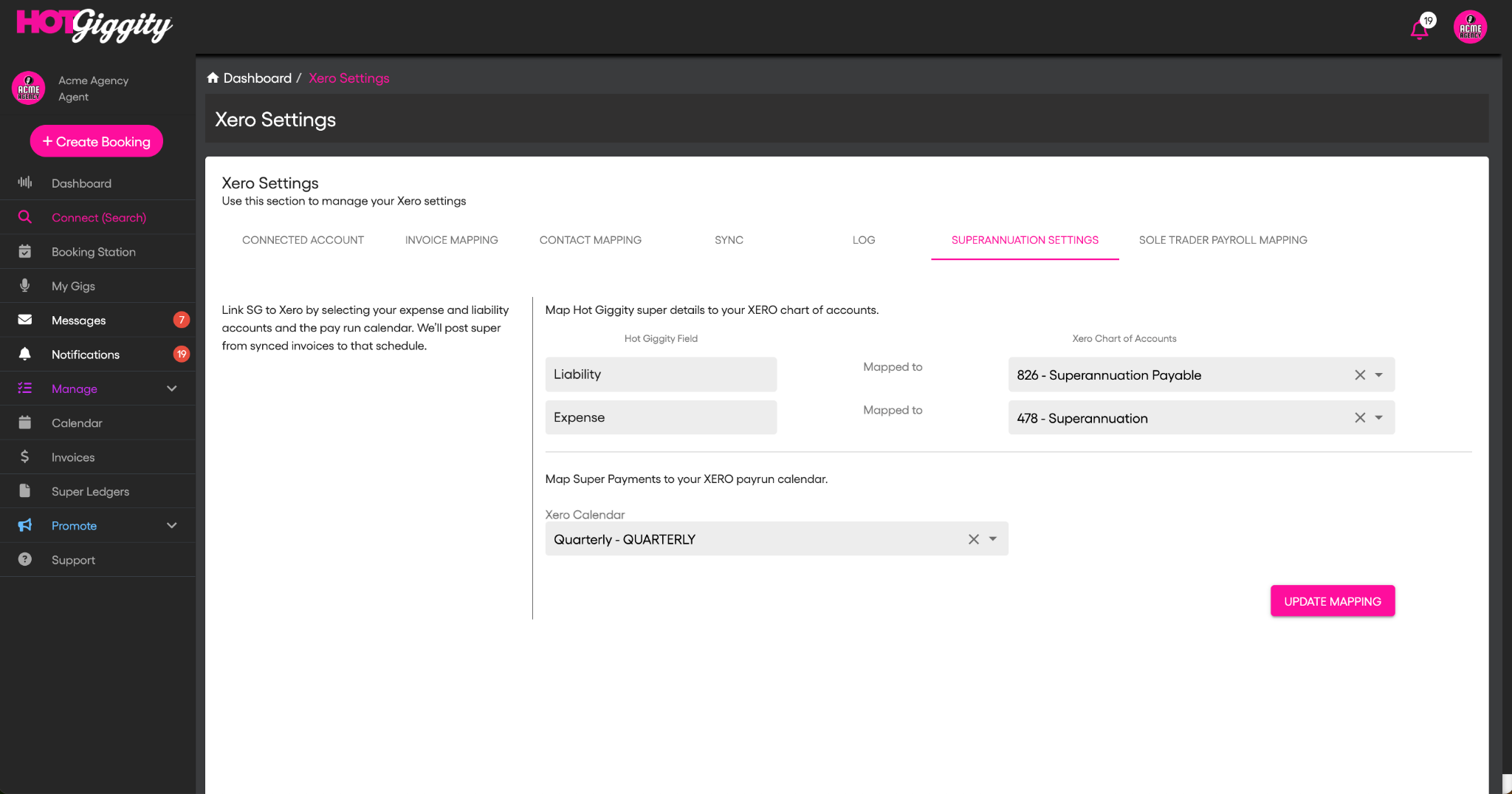
About the screenshots and video: These illustrate the screens and controls. Any quarterly calendar shown is an example from an earlier workflow. Create the calendar you need in Xero, select it in Hot Giggity’s Xero Settings, and use the relevant pay period. The example calendar does not change your Payday Super deadline.
For eligible payments made on or after 1 July 2026, pay super each payday. Contributions generally need to reach the worker’s super fund within 7 business days after the related payment, subject to applicable exceptions. Submit promptly and allow for clearing-house processing time.
Quarterly date filters remain useful for reporting and reconciliation, but do not permit you to defer current super payments until quarter-end. Read our Payday Super payment timing guide.
Audience: Venues (Venue Pro plan)
Prereqs: Venue Pro active (AU$149/month ex GST). Xero AU Payroll enabled. HG ↔ Xero connected (see “Xero Integration” article).
What this guide covers
- Map super liability/expense accounts and a pay run calendar in Xero.
- Create Xero Employees (contractors) from your sole-trader contacts in HG.
- For each pay period, review the related SG in Super Ledgers → Super I Owe, send the selected items to the matching Xero pay run, and complete the super payment in Xero in time to meet Payday Super deadlines.
Step 1 - Connect Xero
If you haven’t connected yet, follow this Xero integration article. Then continue.
Step 2 - Map Superannuation Settings (HG → Xero)
Where: Dashboard → Xero Settings → Superannuation Settings
- Chart of Accounts mapping
- Liability → choose your Xero Superannuation Payable account.
- Expense → choose your Xero Superannuation Expense account.
- Pay run calendar
- Create the required weekly, fortnightly or other suitable payroll calendar in Xero. In Hot Giggity’s Xero Settings, select the Xero Payroll Calendar you created for this workflow.
- Click Update Mapping to save.
Step 2 — Create/Map Sole-Trader Employees in Xero
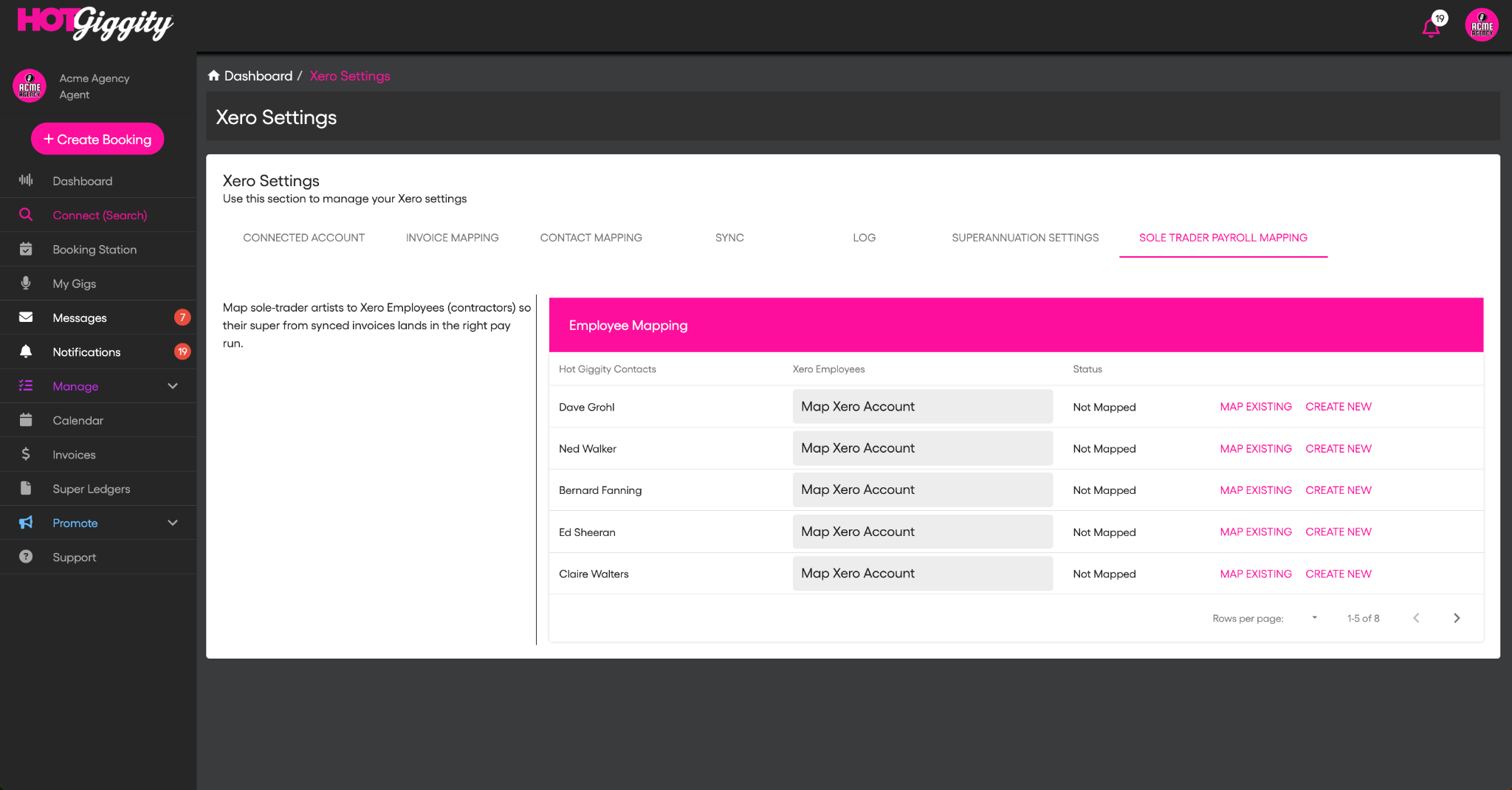
Where: Dashboard → Xero Settings → Sole Trader Payroll Mapping
For each sole-trader act you owe SG for:
- Find them in Hot Giggity Contacts.
- Click Map Existing (if they already exist in Xero) or Create New.
- HG creates a Xero Employee marked as contractor and pushes their Super Fund (ABN/USI) + Member number from the act’s HG profile.
- Status updates from Not Mapped to mapped.
Make sure the act’s HG profile shows Super Details Added ✓ (Manage → My Act Roster). Use ⋯ → View Super Account Details to see the fund details.
Step 3 — Each pay period: Sync SG to Xero from Super Ledgers
Where: Super Ledgers → Super I Owe
- Filter the Super Ledger to the relevant pay period or custom date range. Check the related payment dates so each contribution is submitted in time to reach the fund by its deadline.
- Review rows (Booking Date, Contact, Super Fee, Related Invoice).
- Select all (or selected items).
- Click Sync With Xero.
- HG creates a new Xero pay run on the mapped Payroll Calendar.
- Each selected row posts a super line to the mapped Xero Employee.
Screenshot placeholder:[Insert: Super I Owe list + Sync With Xero]
Notes:
• If an item can’t sync (not mapped employee, missing fund), HG flags it—fix and re-sync.
• Re-sync adds remaining items into the same draft pay run for that period.
Step 4 — Pay Super in Xero
- In Xero Payroll → Pay Runs, open the new pay run HG created.
- Review totals, post the run.
- Use Pay Super to submit and pay to each fund.
- Keep Xero’s payment confirmation/PRN.
- Back in HG, mark items Paid in Super Ledgers if needed.
Reconciliation tips
- Venues only receive Artist invoices from HG: SG is shown in an SG Payable panel (not in the invoice total); you pay the invoice total to the artist and SG direct to the fund.
- Xero postings hit your mapped Expense and Liability; the Pay Super transaction clears the liability.
- Keep the artist invoice, Super Ledger entry, and Pay Super receipt together.
Troubleshooting
- Not mapped employee: Map via Sole Trader Payroll Mapping (Map Existing / Create New), then re-sync.
- Missing fund details: Ask the act to complete their HG profile; verify via Manage → My Act Roster → ⋯ View Super Account Details.
- Wrong calendar: Change in Xero Settings → Superannuation Settings, then re-sync.
- Duplicates: Adjust in Xero draft pay run; re-sync only the required items.
FAQs
- Employment basis in Xero: confirm the appropriate contractor and payroll classification with your adviser. Can I use weekly, fortnightly or monthly periods? Create the payroll calendar you need in Xero, then select that calendar in Hot Giggity’s Xero Settings. Match the ledger date range and pay run to the relevant period. The calendar or reporting period does not extend the applicable Payday Super deadline. GST: super itself is GST-free; GST applies only to taxable fee or commission items.
Plan availability
This workflow is available on Venue Pro (AU$149/month ex GST).
Got questions?
If you have any questions about anything in this article, please email support@hotgiggity.com.